Start -> Run -> regedit
Go to HKEY_LOCAL_MACHINE\SYSTEM\CurrentControlSet\services\USBSTORClick on start in right pane.
Give value as 4. (to block USB)
Give value as 3. (to unblock USB)
This is not a tested solution, but we found this somewhere on internet.
Showing posts with label Reg Edit. Show all posts
Showing posts with label Reg Edit. Show all posts
Tuesday, 31 May 2011

Monday, 28 March 2011
Command Prompt on Right-Click
1. Start > Run
2. Enter “regedit” and hit Enter
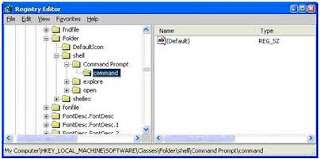
3. Expand to “HKEY_LOCAL_MACHINE\SOFTWARE\Classes\Folder\shell”
4. Right-click on “shell” and select New > Key
5. Make sure a new key is created under “shell“. Change the name of this key to “Command Prompt”
6. Right-click on this new key “Command Prompt” and select New > Key
Change the name of this key to “command
7 Double-click on the “(Default)” text on the right window to bring up the edit box
8 Enter this text into the Value Data field:cmd.exe “%1″
Click OK and close the registry
2. Enter “regedit” and hit Enter
3. Expand to “HKEY_LOCAL_MACHINE\SOFTWARE\Classes\Folder\shell”
4. Right-click on “shell” and select New > Key
5. Make sure a new key is created under “shell“. Change the name of this key to “Command Prompt”
6. Right-click on this new key “Command Prompt” and select New > Key
Change the name of this key to “command
7 Double-click on the “(Default)” text on the right window to bring up the edit box
8 Enter this text into the Value Data field:cmd.exe “%1″
Click OK and close the registry

Creating your own xp Command
Start–>Run—>then type regedit and hit enter  HKEY_LOCAL_MACHINE\SOFTWARE\Microsoft\Windows\CurrentVersion\App Paths
1. Right-Click on App Paths and select> New> Key
2. Title the new key the name of the application, in this case lets consider you want create a run command for photoshopcs
3. Right-Click the default string value and click Modify.
4. Change the value to the path of the executable you want to run. E.g.C:\Program Files\Adobe\Photoshop CS
5. Now, in the white space below right click anywhere and select New> String Value.
Name it Path and enter the value as C:\Program Files\Adobe\Photoshop CS
Now Restart your pc
Go to start> Run> type your run command and hit enter. In the above case its photoshop cs will launch within seconds.
 HKEY_LOCAL_MACHINE\SOFTWARE\Microsoft\Windows\CurrentVersion\App Paths
 1. Right-Click on App Paths and select> New> Key
2. Title the new key the name of the application, in this case lets consider you want create a run command for photoshopcs
3. Right-Click the default string value and click Modify.
4. Change the value to the path of the executable you want to run. E.g.C:\Program Files\Adobe\Photoshop CS
5. Now, in the white space below right click anywhere and select New> String Value.
Name it Path and enter the value as C:\Program Files\Adobe\Photoshop CS
Now Restart your pc
Go to start> Run> type your run command and hit enter. In the above case its photoshop cs will launch within seconds.
Wednesday, 23 March 2011
Remove or Rename the Recycle Bin from the Desktop
Delete Recycle Bin:
HKEY_LOCAL_MACHINE/SOFTWARE/ Microsoft/ Windows/CurrentVersion/explorer/ Desktop/NameSpace
• Then search for the string value "Recyclebin".
• Click on the "Recycle Bin" string in the right hand pane.
• Hit Del, click OK.
Rename Recycle Bin:
• HKEY_CLASSES_ROOT/CLSID/ {645FF040-5081-101B-9F08-00AA002F954E}
• It is very difficult to find the code, right?
No problem, u just copy the code and click to select edit>find; from Menu bar and past to findand by right click on "Recycle Bin"and select modify option for change the name to whatever you want (don't type any quotes).
Eg:- find this code - 645FF040-5081-101B-9F08-00AA002F954E
At last restart the computer..
HKEY_LOCAL_MACHINE/SOFTWARE/ Microsoft/ Windows/CurrentVersion/explorer/ Desktop/NameSpace
• Then search for the string value "Recyclebin".
• Click on the "Recycle Bin" string in the right hand pane.
• Hit Del, click OK.
Rename Recycle Bin:
• HKEY_CLASSES_ROOT/CLSID/ {645FF040-5081-101B-9F08-00AA002F954E}
• It is very difficult to find the code, right?
No problem, u just copy the code and click to select edit>find; from Menu bar and past to findand by right click on "Recycle Bin"and select modify option for change the name to whatever you want (don't type any quotes).
Eg:- find this code - 645FF040-5081-101B-9F08-00AA002F954E
At last restart the computer..
Internet Explorer: Clear your drop down address bar
 HKEY_CURRENT_USER\Software\ Microsoft\Internet Explorer\ TypedURLs
Now select which ever you don't want and press Delete.
Monday, 21 March 2011
Change Logon Wallpaper-Windows XP
HKEY_USERS\.DEFAULT\Control Panel\Desktop
In right side pane see a number of values placed in a table format.
choose the value named Wallpaper from there and double click it.
Now you see a box with value name as Wallpaper and value data as Path to the image file .
There give the full path of the image (bmp file) which you want to set as logon wallpaper by deleting previous path and writing path to your bmp file e.g.
C:\WINDOWS\lon.BMP (to set image lon.BMP file as log on wall paper).
Also double click on WallpaperStyle and change it’s value to 2 to get a stretched wallpaper at logon.
Put that bmp file in windows directory for better results.If that is a jpeg file, convert to bmp file by opening in Windows Image Viewer and save as bmp.
In right side pane see a number of values placed in a table format.
choose the value named Wallpaper from there and double click it.
Now you see a box with value name as Wallpaper and value data as Path to the image file .
There give the full path of the image (bmp file) which you want to set as logon wallpaper by deleting previous path and writing path to your bmp file e.g.
C:\WINDOWS\lon.BMP (to set image lon.BMP file as log on wall paper).
Also double click on WallpaperStyle and change it’s value to 2 to get a stretched wallpaper at logon.
Put that bmp file in windows directory for better results.If that is a jpeg file, convert to bmp file by opening in Windows Image Viewer and save as bmp.
Add a program to the Right Click Menu
HKEY_CLASSES_ROOT\Folder\shell.
Add a new Key to the "Shell" Key and name it anything you like. Give it a default value that will appear when you right click a folder, i.e. NewKey (use an "&" without the quotes, in front of any character and it will allow you to use the keyboard).
Navigate and click on the registry key
HKEY_CLASSES_ROOT\Folder\shell\NewKey.
Now you have to add a New Key named Command and Set the (Default) value of the application you want to run. For example:
c:\program files\internet explorer\iexplore.exe
(Include the full path)
Add a new Key to the "Shell" Key and name it anything you like. Give it a default value that will appear when you right click a folder, i.e. NewKey (use an "&" without the quotes, in front of any character and it will allow you to use the keyboard).
Navigate and click on the registry key
HKEY_CLASSES_ROOT\Folder\shell\NewKey.
Now you have to add a New Key named Command and Set the (Default) value of the application you want to run. For example:
c:\program files\internet explorer\iexplore.exe
(Include the full path)
Monday, 14 March 2011
Get Saved Passwords!
 Internet Explorer 4.00 – 6.00: "HKEY_CURRENT_USER\Software\ Microsoft\Protected Storage System Provider”. You can browse the above key in the Registry Editor (RegEdit), but you won’t be able to watch the passwords, because they are encrypted. Also, this key cannot easily moved from one computer to another, like you do with regular Registry keys.
Internet Explorer 7.00 – 8.00:
The new versions of Internet Explorer stores the passwords in 2 different locations.
1. AutoComplete passwords are stored in the Registry under
HKEY_CURRENT_USER\Software\Microsoft\Internet Explorer\IntelliForms\ Storage2.
2. HTTP Authentication passwords are stored in the Credentials file under
Documents and Settings\Application Data\Microsoft\Credentials
, together with login passwords of LAN computers and other passwords.
Note:"Document and Setting\User Name\Local Setting\Application Data...- It'a an hidden file"
Firefox:
The passwords are stored in one of the following filenames: signons.txt, signons2.txt, and signons3.txt (depends on Firefox version)
These password files are located inside the profile folder of Firefox, in
[Windows Profile]\Application Data\Mozilla\Firefox\Profiles\[Profile Name]
Also, key3.db, located in the same folder, is used for encryption/decription of the passwords.
Google Chrome Web browser:
The passwords are stored in
[Windows Profile]\Local Settings\Application Data\Google\Chrome\User Data\Default\Web Data (This filename is SQLite database which contains encrypted passwords and other stuff)
Opera:
The passwords are stored in wand.dat filename, located under
[Windows Profile]\Application Data\Opera\Opera\profile
Outlook Express (All Versions):
The POP3/SMTP/IMAP passwords Outlook Express are also stored in the Protected Storage, like the passwords of old versions of Internet Explorer.
Outlook 98/2000:
Old versions of Outlook stored the POP3/SMTP/IMAP passwords in the Protected Storage, like the passwords of old versions of Internet Explorer.
Outlook 2002-2008:
All new versions of Outlook store the passwords in the same Registry key of the account settings.
The accounts are stored in the Registry under
HKEY_CURRENT_USER\Microsoft\Windows NT\CurrentVersion\Windows Messaging Subsystem\Profiles\[Profile Name]\9375CFF0413111d3B88A00104B2A6676\ [Account Index]
If you use Outlook to connect an account on Exchange server, the password is stored in the Credentials file, together with login passwords of LAN computers.
Windows Live Mail:
All account settings, including the encrypted passwords, are stored in
[Windows Profile]\Local Settings\Application Data\Microsoft\Windows Live Mail\[Account Name]
The account filename is an xml file with .oeaccount extension.
ThunderBird:
The password file is located under
[Windows Profile]\Application Data\Thunderbird\Profiles\[Profile Name]
You should search a filename with .s extension.
Google Talk:
All account settings, including the encrypted passwords, are stored in the Registry under
HKEY_CURRENT_USER\Software\Google\Google Talk\Accounts\[Account Name]
Google Desktop:
Email passwords are stored in the Registry under
HKEY_CURRENT_USER\Software\Google\Google Desktop\Mailboxes\[Account Name]
MSN/Windows Messenger version 6.x and below:
The passwords are stored in one of the following locations:
1. Registry Key: HKEY_CURRENT_USER\Software\Microsoft\MSNMessenger
2. Registry Key: HKEY_CURRENT_USER\Software\Microsoft\MessengerService
3. In the Credentials file, with entry named as “Passport.Net\\*“. (Only when the OS is XP or more)
MSN Messenger version 7.x:
The passwords are stored under
HKEY_CURRENT_USER\Software\Microsoft\IdentityCRL\Creds\[Account Name]
Windows Live Messenger version 8.x/9.x:
The passwords are stored in the Credentials file, with entry name begins with “WindowsLive:name=”.
Yahoo Messenger 6.x:
The password is stored in the Registry, under
HKEY_CURRENT_USER\Software\Yahoo\Pager
(“EOptions string” value)
Yahoo Messenger 7.5 or later:
The password is stored in the Registry, under
HKEY_CURRENT_USER\Software\Yahoo\Pager – “ETS” value.
The value stored in “ETS” value cannot be recovered back to the original password.
AIM Pro:
The passwords are stored in the Registry, under
HKEY_CURRENT_USER\Software\AIM\AIMPRO\[Account Name]
AIM 6.x:
The passwords are stored in the Registry, under
HKEY_CURRENT_USER\Software\America Online\AIM6\Passwords
ICQ Lite 4.x/5.x/2003:
The passwords are stored in the Registry, under
HKEY_CURRENT_USER\Software\Mirabilis\ICQ\NewOwners\[ICQ Number]
(MainLocation value)
ICQ 6.x:
The password hash is stored in
[Windows Profile]\Application Data\ICQ\[User Name]\Owner.mdb (Access Database) (The password hash cannot be recovered back to the original password)
Digsby:
The main password of Digsby is stored in
[Windows Profile]\Application Data\Digsby\digsby.dat
All other passwords are stored in Digsby servers.
PaltalkScene:
The passwords are stored in the Registry, under
HKEY_CURRENT_USER\Software\Paltalk\[Account Name].
Monday, 7 March 2011
How to Disable XP VISTA shutdown
HKEY_CURRENT_USER\Software\Microsoft\Windows\CurrentVersion\Policies\Explorer Create a new DWORD value named NoClose with a data value of 1.
Exit the Registry and reboot in order for the change to take effect.
reenable normal shutdowns, delete the NoClose value.
Exit the Registry and reboot in order for the change to take effect.
reenable normal shutdowns, delete the NoClose value.
Task Manager Disabled
Click Start -> Run and type the following command exactly and press Enter
REG add HKCU\Software\Microsoft\Windows\CurrentVersion\Polices\System /v
Disable TaskMgr /t REG_DWORD /d 0 /f
Open Notepad and type,
[HKEY_CURRENT_USER\Software\Microsoft\Windows\CurrentVersion\Polices\System]
"Disable TaskMgr" = dword:00000000
and Save it to your destop "Filename.reg"
Double click that .reg file to edit the Windows Registry.
REG add HKCU\Software\Microsoft\Windows\CurrentVersion\Polices\System /v
Disable TaskMgr /t REG_DWORD /d 0 /f
Open Notepad and type,
[HKEY_CURRENT_USER\Software\Microsoft\Windows\CurrentVersion\Polices\System]
"Disable TaskMgr" = dword:00000000
and Save it to your destop "Filename.reg"
Double click that .reg file to edit the Windows Registry.
Change the Default Location for Installing Programs
HKEY_LOCAL_MACHINE\Software\Microsoft\Windows\CurrentVersion.
Look for the value named ProgramFilesDir
by default, the value will be C:\Program Files
Look for the value named ProgramFilesDir
by default, the value will be C:\Program Files
Sunday, 6 March 2011
Change the default download target for InternetExplorer
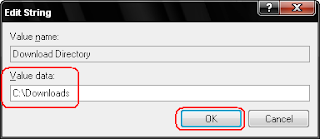
If you want to change the Default download location to some other location on your System .
Give the path where you want to download should store....
Just do the following steps,
**Start -> Run -> type Regedit
**Navigate the following key from left pane
**HKEY_CURRENT_USER\Software\Microsoft\Internet Explorer
 Edit the "Download Directory".
Give the path where you want to download should store....
Subscribe to:
Posts (Atom)